A 17-year-old German student contends PayPal has denied him a reward for finding a vulnerability in its website.
Robert Kugler said he notified PayPal of the vulnerability on May 19. He said he was informed by email that because he is under 18 years old, he did not qualify for its Bug Bounty Program. He will turn 18 next March.
PayPal, which is owned by auction site eBay, outlines the terms and conditions for its Bug Bounty Program on its website, but does not appear to have an age guideline. PayPal officials did not have an immediate comment.
Many companies such as Google and Facebook have reward programs. The programs are intended to create an incentive for researchers to privately report issues and allow vendors to release fixes before hackers take advantage of flaws.
Facebook pays a minimum of $500 for qualifying bugs, while Google pays from $100 up to $20,000 depending on the severity of the issue. Neither has an age restriction listed on their websites. Microsoft does not pay for security vulnerability information, but instead publicly acknowledges the work. PayPal does not list what it will pay a researcher for a bug.
Kugler is listed as a contributor in a Microsoft list from April of security researchers. He said he received rewards for finding vulnerabilities in the past. Mozilla paid him $1,500 for finding a problem in the Firefox browser last year and $3,000 earlier this year for another bug.
PayPal requires that those reporting bugs have a verified PayPal account. Kugler said he asked PayPal that any bounty be paid into his parent's account.
At minimum, Kugler would like PayPal to acknowledge his finding and send him some documentation "that I can use in a job application," he wrote via email. So far, he hasn't received anything.
The details of the vulnerability, a cross-site scripting flaw (XSS), is posted on Full Disclosure section Seclists.org, a forum for disclosing security vulnerabilities.
An XSS attack occurs when a script drawn from another Web site is allowed to run but should not. The type of flaw can be used to steal information or potentially cause other malicious code to run.
The new Opera Next 15 beta is the re-imagined and slimmed-down version of Opera’s desktop browser. This release comes on the heels of the company’s revamp of Opera 14 for Android.
There’s plenty new in Opera Next 15, although some of the changes are in keeping withOpera 14 for Android, which was released last week. Opera 15’s user interface is simpler, with a single bar for URL and searching, like those found on Chrome and Safari. You can turn on the suggestions from the privacy settings and choose among multiple search providers.
The slimmed down Opera Next 15 for desktops
The Speed Dial quick website access feature of Opera 14 has been brought to the desktop and merged with the bookmarks, which now can be found in the top-right corner of the address bar. The mobile version’s Discover feature also made its way onto the new desktop version, with 13 categories in 32 languages of aggregated content for you to browse.
Another feature is the Off-road mode (previously called Turbo), which compresses pages through Opera’s server to reduce their size before they reach your computer. This could be particularly useful when using slow connections or when your laptop is tethered from a smartphone or a MiFi device. However, secure (https) pages don’t get sent through Opera’s proxy.
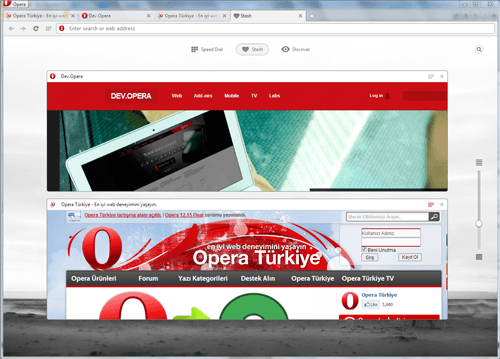
One new and interesting feature is called Stash. It aims to help those who keep countless tabs open in their browser for later reference. This lets you mark a page (via a heart icon) that will be added to the Stash available from the start page.
You are able to see screenshots of all your stashed pages there, as well as adjust them on a grid, depending on how many you have. If you have a lot of stashed items, you can click the search icon in the top right corner of the page.
The Stash feature of Opera Next 15
Besides the exterior changes, a lot has changed under the hood in Opera Next 15. Again, as with the mobile version, Opera dumped its proprietary Presto web page rendering engine and adopted WebKit, the engine used by Apple and Google—but more specifically Blink, Google’s fork of WebKit.
The new desktop and mobile browsers will now be named to reflect the version number of the engine powering the browser. Opera for Android has been given the number 14, while the desktop version is named 15, as it is based on a more recent engine version.
Missing
Opera users will also notice some things missing in Opera Next 15. The M2 email client is not included in the browser anymore. This is to reduce the footprint and memory usage, Opera said, so it has now moved the app in a standalone client called Opera Mail. The new app adds labeling, filtering, threads and multiple tabs.
Opera Next 15 leaves behind its extensions architecture, so Opera 11 and 12’s extension format is no longer supported. Instead, the Chromium extension model is used, and there are tools to convert old extensions. Mouse gestures and keyboard shortcuts are still there, but they are off by default and need enabling from the settings panels if you want to use them.
Opera Next 15 is still in development. However, the company said it would have a fast release cycle, with feature additions and bug fixes based on user feedback.
Over the years, many have touted Mozilla’s Firefox as one of the most secure Web browsers. But as with other browsers, the security level offered depends on the settings. Some security features need to be manually enabled. Those turned on by default should still be double-checked.
Follow these five steps to lock down Firefox. Start with the essentials in the browser’s own settings, then choose some useful add-ons. Finally, keep track of your plug-ins so you can patch the inevitable security holes.
Enable a master password
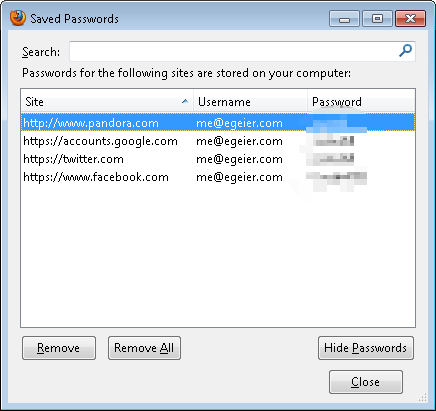
Like other browsers, Firefox by default allows anyone who accesses your computer to log in to sites where you’ve saved the password. And as with Google Chrome, a list of the saved usernames and passwords can be viewed via the Options menu of Firefox.
ERIC GEIERBy default, nothing prevents others from viewing all your saved login info in Firefox.
Fortunately, Firefox offers a master password feature that encrypts and password-protects the saved password list. When enabled, you must enter the master password the first time you use a saved password, once per browser session. Additionally, even though you enter the master password the first time, you must always enter it before you can view saved passwords via the Options menu. This is a great feature to help prevent casual snooping of your passwords. It even prevents most third-party utilities from recovering them.
ERIC GEIERCreating a master password prevents others from using or viewing your saved login info.
To enable the master password feature, open the Firefox menu, select Options,select the Security tab, and then check theUse a master password option.
Use a strong password for syncing
Like Google Chrome, Firefox has a syncing feature to synchronize your bookmarks, passwords, and other browser data to Firefox browsers running on other computers and devices. Fortunately, Firefox encrypts all synced data, not just your saved passwords (as Google Chrome does). Additionally, Firefox has more security than what Chrome offers by default when you’re setting up a new computer or device to sync. In Firefox, you must log in with your Firefox Sync password. Then you must either enter a random passcode from the new device into one that you've already set up, or take the recovery key from a device you’ve already set up and input that key into the new device.
ERIC GEIERSyncing conveniently syncs your saved login and other browser data across multiple computers.
So you don’t have much to worry about with Firefox syncing—as long as you use a strong password, one with upper- and lowercase letters, numbers, and special characters. If someone knows or cracks the password, and has access to a device you’ve already set up with syncing, they can then set up other devices with syncing and access your passwords and other browser data.
To enable or change sync settings, open the Firefox menu, select Options, and select the Sync tab.
Verify that security options are enabled
Like other popular browsers, Firefox includes some basic security and privacy settings. Though most are enabled by default, you should ensure they haven’t been disabled.
ERIC GEIERMake sure the first three security options are selected to protect against malware and phishing attacks.
Start by opening the Firefox menu and selecting Options. In the Options window, select the Security tab. Ensure that the first option, Warn me when sites try to install add-ons, is enabled to help prevent sites from automatically installing add-ons, as some can be dangerous. Then ensure that the next two options, Block reported attack sites and Block reported web forgeries, are also checked to help enable protection against malware and phishing.
ERIC GEIERCheck the first privacy option to help prevent websites from tracking your online activity.
Next, select the Privacy tab. And if you want more privacy online, select the first option, Tell websites I do not want to be tracked, which isn’t enabled by default. Although it can’t prevent all tracking, it will reduce tracking by those sites that support this type of option.
ERIC GEIEREnsure that the first content option here is enabled to block pop-ups.
Now, select the Content tab. To prevent pop-up windows that can be annoying and even contain phishing ads, ensure that the first option is enabled: Block pop-up windows.
Lastly, select the Advanced tab, select theUpdate subtab, and ensure thatAutomatically install updates is selected.
Use add-ons for more protection
Consider installing these security-related add-ons for extra protection:
NoScript helps you control which sites can use JavaScript, Silverlight, Flash, and other embedded content, as they can be used maliciously to infect your computer or for phishing attempts.
Adblock Plus blocks banners, pop-ups, and video advertisements on websites to reduce clutter and the resulting annoyance; they can even reduce accidentally stumbling upon adware, malware, and phishing attacks.
Web of Trust (WOT) shows the user ratings of sites and blocks dangerous sites—such as those with malware—to increase safe surfing, shopping, and searching on the Web.
HTTPS Finder automatically detects and enforces HTTPS/SSL-encrypted connections when available—great in helping to reduce the chances of an eavesdropper on a Wi-Fi network from capturing your login details.
Xpnd.it! short URL expander allows you to hover over shortened links to see the real URL and other basic information about the site so you know where it leads before clicking.
Check and update plug-ins
Cyber criminals regularly use vulnerabilities in popular browser plug-ins (like Java and Adobe products) to infect and invade computers. Most plug-ins regularly release updates to patch security holes. Many plug-ins are set by default to update automatically or at least to notify you of them. However, it’s a good idea to check periodically for updates. Consider using the Mozilla plug-in checker or third-party sites like Qualys BrowserCheck for updates for other browsers.
A little vigilance goes a long way
Firefox is pretty secure on its own, but you can make it even more secure with the right settings and add-ons. Good password management remains essential, too: Create and enable a strong master password so others can’t use or view your passwords. And if you use the syncing feature to synchronize your passwords and browser data across devices, use a strong password to prevent others from syncing. Finally, keep tabs on your add-ons and plug-ins to make sure they’re giving you the best possible protection.
WhatsApp is popular free messaging client which is available for iOS, Android, Nokia and Blackberry, but still we have no client for Windows PC officially released by the WhatsApp team. Well you can imagine having WhatsApp on your PC and how fast you will be able to send and receive text messages as you always be on one device so you can handle everything right there. So we found an unofficial client which is supposed to be a dummy version of Android running on your PC.
BlueStacks App Player Android Emulator
BlueStacks App Player helps you install WhatsApp and thousands other application because its an Android operating system running on your Windows PC. Now obviously its not like you will get that same kind of experience you can do with a touch phone and Android installed on it but still if you are a WhatsApp fan than I must that this software is must for you because WhatsApp experience on this one is simply unbelievable faster texting and media exchanging.
Steps to Install WhatsApp on BlueStacks App Player
So if you are interested in using WhatsApp right on your PC that you can grab some installation knowledge from below and start experiencing right now.
After you have downloaded the above software, start installing it and it will start downloading its package from the internet, it will take some time so sit back and have a cup of coffee.
So after downloading it will install and now you will see their user interface, now you have to sign up for your new account or if you already have their account than you can login.
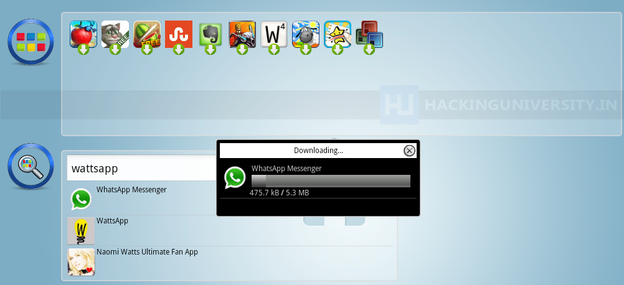
Now just search for the WhatsApp like in the above image or find it from the popular downloads hovering right above in the Rocket Dock, after you find it click on it and it will start downloading the app.
After WhatsApp is installed click on it and you will see a Terms and Conditions page where you have to click on Agree and than you will be on their main phone verification page.
Now just select your country & than insert your mobile number & than click on OK.
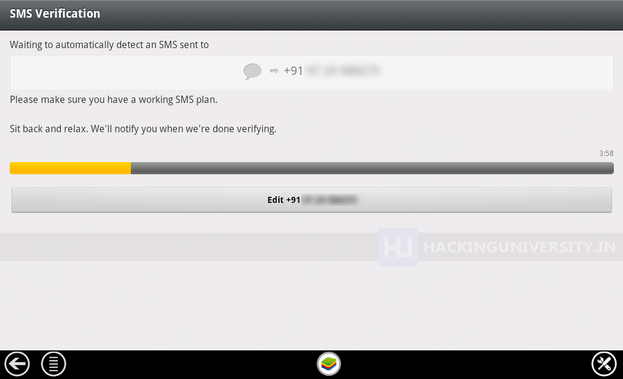
Now it will start the process of sending you the verification message on your mobile, if that thing fails you also have an option to call your number for the verification message. So now just insert that code and click on OK boom you have successfully activated your WhatsApp messenger on your Windows PC.
So now WhatsApp is ready for some action, select your already created groups, if you were having one on your mobile or you can start sending text or media messages to your friends and create another new group, so I was just messing around my group Wild Hogs, and tried sending some messages and delivery was amazingly fast and responsive.
So now enjoy WhatsApp on your Windows PC with this amazing BlueStacks App Player, well you can also download and install other amazing Android Application which you can search and than download, hope you liked this lengthy tutorial, please share it with all your friends.


 ERIC GEIER
 ERIC GEIER
 ERIC GEIER
 ERIC GEIER
 ERIC GEIER