Showing posts with label gadget. Show all posts

Sunday, 26 August 2012

Infolinks Presents a New Blogger Widget


To make their life even easier Infolinks has just launched its new Blogger widget, enabling Blogger publishers to integrate In Text ads into their blog pages with just a click.

  • Share on TwitterShare on FacebookShare on Google+Share on LinkedInEmail a friend
Quote startInfolinks is pleased to provide the blogging community with an easy-to-use widget that generates an additional stream of revenueQuote end
Palo Alto, CA (PRWEB) May 21, 2010
These days, web publishers are getting the word out with Blogger, the most popular blogging platform, and it’s no secret that they are looking to monetize their sites. They want a return on their investment and often the traditional forms of online advertising just aren’t enough. So what are Bloggers doing? They’re turning their content into money with the Infolinks In Text advertising solution.
To make their life even easier Infolinks has just launched its new Blogger widget, enabling Bloggerpublishers to integrate In Text ads into their blog pages with just a click.
According to Tomer Treves, Infolinks Chief Marketing Officer, “Infolinks is pleased to provide the blogging community with an easy-to-use widget that generates an additional stream of revenue. Providing this Blogger widget was a natural step for Infolinks, as we fully support the bloggers community. We’ll do anything we can in order to help bloggers monetize while sharing their thoughts and feelings with the online community.”
Why Use the New Infolinks Blogger Widget
Once the Infolinks Blogger widget has been installed, the Infolinks algorithm scans the site and converts carefully selected keywords into relevant Pay Per Click (PPC) contextual ads. These ads then appear as double underlined hyperlinks within the Web content, ensuring high conversion rates and substantial advertising revenues.
About Blogger
Blogger is a free user-friendly blogging service that was launched in 1999 and acquired by Google in 2003. Blogger gives millions of people a voice and along with Infolinks In Text ads, allows bloggers to earn from their content.
About Infolinks
Infolinks was established in 2007 and backed by Primera Capital. Infolinks leads the In Text advertising industry with the most attractive business model and guarantees the highest revenue sharing basis to all partners.
###

Thursday, 23 August 2012

Apple, Sony, Nike eyeing your wrist


Cellphones have already muscled onto watches’ turf as a time-telling tool. Now, some of the biggest technology companies are eyeing your wrist, too.
Companies like Apple, Nike and Sony, along with dozens of startups, hope to strap a device on your wrist.
It’s quite a disruption for the wristwatch, which has not actually been around all that long. Though said to have been invented in 1868 by the Swiss watchmaker Patek Philippe, it didn’t really catch on until after World War I. Before that, people carried watches in their pockets or on chains.
apple watch“Watch manufacturers were asking themselves this in the 1900s, if it made sense to have a watch in their pocket,” said Blaise Bertrand, industrial design director for IDEO, a design company. “I think that’s the same question that is being asked now, but it’s in a completely different context with the smartphone in our pockets.”
The new wrist devices won’t replace smartphones, but rather connect to them. Most will continue the basic task of telling the time, while eliminating the need to dig a smartphone out of your pocket or purse.
But they will provide far more information than the most advanced G-Shock watch available today, or the most expensive chronometer.
For example, Sony this year released the Smartwatch, a 2-inch-square screen that can display emails, Twitter posts and other pieces of text, all pulled from an Android smartphone.
Nike Fuel, a black band with an array of colored lights, measures the energy you exert on a daily basis and sends it to a smartphone. Jawbone sells the Up, a unisex bracelet that tracks a user’s daily activity and sends the information to an iPhone application.
Pebble, an innovative watch that can play music and display text, the weather and other information from a phone, caught the public’s imagination on Kickstarter, where it raised $10.3 million. It’s expected to arrive next year.
It is the extension of the phone that is appealing. “The wrist becomes a remote screen where you now have the ability to control your phone with a number of different applications,” said Stephen Sneeden, Sony’s product marketing manager.

Apple, Sony, Nike eyeing your wrist


Cellphones have already muscled onto watches’ turf as a time-telling tool. Now, some of the biggest technology companies are eyeing your wrist, too.
Companies like Apple, Nike and Sony, along with dozens of startups, hope to strap a device on your wrist.
It’s quite a disruption for the wristwatch, which has not actually been around all that long. Though said to have been invented in 1868 by the Swiss watchmaker Patek Philippe, it didn’t really catch on until after World War I. Before that, people carried watches in their pockets or on chains.
apple watch“Watch manufacturers were asking themselves this in the 1900s, if it made sense to have a watch in their pocket,” said Blaise Bertrand, industrial design director for IDEO, a design company. “I think that’s the same question that is being asked now, but it’s in a completely different context with the smartphone in our pockets.”
The new wrist devices won’t replace smartphones, but rather connect to them. Most will continue the basic task of telling the time, while eliminating the need to dig a smartphone out of your pocket or purse.
But they will provide far more information than the most advanced G-Shock watch available today, or the most expensive chronometer.
For example, Sony this year released the Smartwatch, a 2-inch-square screen that can display emails, Twitter posts and other pieces of text, all pulled from an Android smartphone.
Nike Fuel, a black band with an array of colored lights, measures the energy you exert on a daily basis and sends it to a smartphone. Jawbone sells the Up, a unisex bracelet that tracks a user’s daily activity and sends the information to an iPhone application.
Pebble, an innovative watch that can play music and display text, the weather and other information from a phone, caught the public’s imagination on Kickstarter, where it raised $10.3 million. It’s expected to arrive next year.
It is the extension of the phone that is appealing. “The wrist becomes a remote screen where you now have the ability to control your phone with a number of different applications,” said Stephen Sneeden, Sony’s product marketing manager.

nokia launches lumia 900 with 41 mega pixel camera

Nokia Drops Slight Hint of 41-Megapixel Sensor in Forthcoming Smartphone

Nokia has dropped a hint that its forthcoming Lumia smartphone may include the eye-opening 41-megapixel camera technology that caught the industry by surprise when shown off earlier this year.
The company first showed off the ability to embed a 41-megapixel sensor into a cameraphone earlier this year when it announced the Pureview 808, which also surprised by being based on Symbian instead of the Microsoft OS the company had committed to.
LumiaHowever, the handset had been under development for some time and some of the clever software was specific to Symbian, so the debate has been whether Nokia has used the intervening months to adapt it for use in a Windows Phone based device.
In a slightly cryptic reply to a self-confessed Windows Phone fan, Philip G, the official Nokia twitter account didn’t exactly brush off a question about whether the upcoming handset would come with the Pureview technology.
Responding to Nokia’s announcement that the current Pureview 808 smartphone won a camera award, Philip G asked about the upcoming Lumia handset, to which Nokia replied: “Just keep your eyes and ears open in the next coming weeks….”
Not conclusive, but not a complete brush off either.
In fact, the 41-megapixel camera is not really designed for use as a camera with a very high resolution though, but as a way of allowing a high-quality digital zoom to overcome a cameraphone’s lack of zoom lens. The higher the original resolution, the less quality is lost when using digital zooms.
So while the headline figure of a 41-megapixel camera grabbed headlines, it is the zoom capability which excited camera enthusiasts.
If Nokia have managed to modify the Windows Phone OS to support the 41-megapixel sensor, then it could be a break-through moment for the company.

Monday, 20 August 2012

Pro Golf 2012 World Tour-Nokia s60v5 Game

More holes, beautiful graphics and 5 famous gamers makes Pro Golf 2012 World Tour the very best golf sim available. Play professional golfers like Sergio Garcia, Vijay Singh, Jim Furyk, Camilo Villegas and Justin Rose in 3 varied locations around the globe: Fiji Island, American Slopes and British countryside. The attractive three dimensional-like conditions provides the game a great looks with real focus on detail. Personalize your golfer with equipment you purchase within the golf shop and manage his progression. It&rsquos the nearest response to real golf presently obtainable in your mobile.
Features & Specs:
1.Choose from 5 inside the finest gamers on the planet to discover with: Sergio Garcia, Vijay Singh, Camilo Villegas, Jim Furyk or Justin Rose
2.54 holes to accomplish in three 18-hole courses displayed in 3 conditions: Fiji Beach, American Slopes and British Countryside
3.Exceptional looks: three dimensional-like representations of gamers and animated conditions, displayed with three dimensional techniques.
4.Employment mode delivering you when using the chance to understand competitions all over the world as well as the possibility of identifying your player&rsquos progress together with the gear.
Supported Products:
Nokia N8, Nokia C6-01, Nokia C7-00, Nokia E7-00, Nokia E6, Nokia X7, Nokia 500, Nokia 603, Nokia 700, Nokia 701
Symbian S60v5:
Nokia 5228, Nokia 5230, Nokia 5233, Nokia 5235, Nokia 5250, Nokia 5530 XpressMusic, Nokia 5800 XpressMusic, Nokia 5800 Navigation Edition, Nokia C5-03, Nokia C6-00, Nokia N97, Nokia N97 small, Nokia X6, Samsung i8910 Omnia HD,[57] The company-new the brand-new the completely new the brand new the new sony Ericsson Satio, The company-new the brand-new the completely new the brand new the new sony Ericsson Vivaz, The company-new the brand-new the completely new the brand new the new sony Ericsson Vivaz Professional

Thursday, 9 August 2012

How to Clear Your Data off a Device


If you're recycling your computer, smartphone or tablet, there's one significant problem you may have ignored: If you don't wipe them clear of data, you could become a victim of identity theft. Merely deleting files using normal system tools won't really do the trick --- you need to do a much deeper cleaning. Here's how to do it.
(Note: This article is an update of a previous article that ran in December, 2007; while some of the older information still stands, a lot of other things have changed since then.) (See Related: Hard Drives Exposed)
Cleaning up cell phones, smartphones and tablets
Smartphones and tablets essentially pack your entire life into a small package, including your contacts, emails, records of incoming and outgoing phone numbers, social media information...and more. So you want to make sure that someone else can't get access to all that information.
You could try deleting individual apps and contacts, but the odds of doing that effectively are close to zero. Instead, you want to do a complete reset of your phone to wipe out its data and restore it to its factory settings.
How you do this varies from operating system to operating system, and sometimes even device to device. These are general instructions that should work with most devices; however, it's best to check with your manual or manufacturer just to make sure.
Android: For versions before Android 4.0, press the Menu key from the Home screen and select Settings/Privacy/Factory data reset. You'll get a warning screen. Scroll toward the bottom and tap "Reset phone." If you also have an SD card in the phone (and don't want to use the data in your next phone), also make sure to check the box next to "Erase SD card."
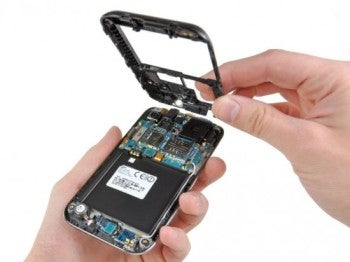
Image Credit: iFixItFor Android 4.0 or later, go to Settings and look for "Backup and reset." Tap that, and then, on the next screen, tap "Factory data reset." You'll get a warning screen along with a list of all the accounts you are currently signed into.
iOS: Go to Settings/General/Reset and then tap "Erase all Content and Settings." (This is specifically for Version 5; the process may differ slightly for other versions.)
Windows Phone 7: Go to the Home screen, then tap the Application Menu Key and select Settings/ System/About/ and tap the "Reset your phone" button.
BlackBerry: Head to Options/Security options/General settings, and then tap menu. Then select Wipe Handheld.
Wiping computer hard drives
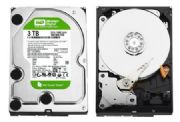
Deleting files, folders and applications -- and clearing the data from the Recycle Bin -- won't do the trick if you're going to recycle your computer. Anyone can easily recreate that data using commonly available tools. Even if you reformat your hard disk, if someone really puts their mind to it they can recreate the deleted data.
This can be a serious problem. Back in 2003, two graduate students at MIT's Laboratory for Computer Science bought 158 used hard disks from eBay and other sources.
Only 12 of the drives had their data properly cleaned. Even though approximately 60% of the hard drives had been reformatted and about 45% had no files on them (the drives couldn't even be mounted on a computer), the students were still able to recover data from them, using a variety of special tools. They found over 5,000 credit card numbers, personal and corporate financial records, medical records and personal e-mails.
What can you do to keep your data safe? Get a disk-wiping program, preferably one that meets the U.S. Department of Defense's Media Sanitation Guidelines. These programs will overwrite your entire hard disk with data multiple times, ensuring that the original data can't be retrieved. If you use them, be patient, because it can take several hours to wipe the hard disk.
One well-known free application that meets the DoD's standards, according to Auburn University, is Darik's Boot and Nuke. The software creates a boot disk that wipes everything on the hard drive. It can also be used with floppy disks (remember those?), USB flash drives, CDs and DVDs.
Another free Windows utility that also meets the DoD's standards is Eraser.
If you've got a Mac, you can use Apple's built-in Disk Utility (it can be found in the Applications/Utility folder). You can also download a third-party application like Mireth Technology's ShredIt X ($25, free trial available), which lets you shred files (in other words, overwrite the contents of a file multiple times) as well as wipe your local hard drive, network hard drives and CD-RWs. (There's a Windows version as well.)
If you're truly nervous, there are hardware devices available that let you sanitize your drives such as Drive eRazer Ultra. Or you can pull the disk from your PC and send it to a hard drive shredding service that will physically destroy the drive.
(For a more tongue-in-cheek view of how to cleanse a hard drive, check out this old-but-still-good story: Removing hard drive data -- the YouTube way.)
Once you've wiped your device clean, it's safe to sell, donate or recycle your equipment. Find out how to do it in our article How to recycle your phone, PC and other tech gear.
Preston Gralla is a contributing editor for Computerworld.com and the author of more than 35 books, including How the Internet Works (Que, 2006).

How to Clear Your Data off a Device


If you're recycling your computer, smartphone or tablet, there's one significant problem you may have ignored: If you don't wipe them clear of data, you could become a victim of identity theft. Merely deleting files using normal system tools won't really do the trick --- you need to do a much deeper cleaning. Here's how to do it.
(Note: This article is an update of a previous article that ran in December, 2007; while some of the older information still stands, a lot of other things have changed since then.) (See Related: Hard Drives Exposed)
Cleaning up cell phones, smartphones and tablets
Smartphones and tablets essentially pack your entire life into a small package, including your contacts, emails, records of incoming and outgoing phone numbers, social media information...and more. So you want to make sure that someone else can't get access to all that information.
You could try deleting individual apps and contacts, but the odds of doing that effectively are close to zero. Instead, you want to do a complete reset of your phone to wipe out its data and restore it to its factory settings.
How you do this varies from operating system to operating system, and sometimes even device to device. These are general instructions that should work with most devices; however, it's best to check with your manual or manufacturer just to make sure.
Android: For versions before Android 4.0, press the Menu key from the Home screen and select Settings/Privacy/Factory data reset. You'll get a warning screen. Scroll toward the bottom and tap "Reset phone." If you also have an SD card in the phone (and don't want to use the data in your next phone), also make sure to check the box next to "Erase SD card."
Image Credit: iFixItFor Android 4.0 or later, go to Settings and look for "Backup and reset." Tap that, and then, on the next screen, tap "Factory data reset." You'll get a warning screen along with a list of all the accounts you are currently signed into.
iOS: Go to Settings/General/Reset and then tap "Erase all Content and Settings." (This is specifically for Version 5; the process may differ slightly for other versions.)
Windows Phone 7: Go to the Home screen, then tap the Application Menu Key and select Settings/ System/About/ and tap the "Reset your phone" button.
BlackBerry: Head to Options/Security options/General settings, and then tap menu. Then select Wipe Handheld.
Wiping computer hard drives
Deleting files, folders and applications -- and clearing the data from the Recycle Bin -- won't do the trick if you're going to recycle your computer. Anyone can easily recreate that data using commonly available tools. Even if you reformat your hard disk, if someone really puts their mind to it they can recreate the deleted data.
This can be a serious problem. Back in 2003, two graduate students at MIT's Laboratory for Computer Science bought 158 used hard disks from eBay and other sources.
Only 12 of the drives had their data properly cleaned. Even though approximately 60% of the hard drives had been reformatted and about 45% had no files on them (the drives couldn't even be mounted on a computer), the students were still able to recover data from them, using a variety of special tools. They found over 5,000 credit card numbers, personal and corporate financial records, medical records and personal e-mails.
What can you do to keep your data safe? Get a disk-wiping program, preferably one that meets the U.S. Department of Defense's Media Sanitation Guidelines. These programs will overwrite your entire hard disk with data multiple times, ensuring that the original data can't be retrieved. If you use them, be patient, because it can take several hours to wipe the hard disk.
One well-known free application that meets the DoD's standards, according to Auburn University, is Darik's Boot and Nuke. The software creates a boot disk that wipes everything on the hard drive. It can also be used with floppy disks (remember those?), USB flash drives, CDs and DVDs.
Another free Windows utility that also meets the DoD's standards is Eraser.
If you've got a Mac, you can use Apple's built-in Disk Utility (it can be found in the Applications/Utility folder). You can also download a third-party application like Mireth Technology's ShredIt X ($25, free trial available), which lets you shred files (in other words, overwrite the contents of a file multiple times) as well as wipe your local hard drive, network hard drives and CD-RWs. (There's a Windows version as well.)
If you're truly nervous, there are hardware devices available that let you sanitize your drives such as Drive eRazer Ultra. Or you can pull the disk from your PC and send it to a hard drive shredding service that will physically destroy the drive.
(For a more tongue-in-cheek view of how to cleanse a hard drive, check out this old-but-still-good story: Removing hard drive data -- the YouTube way.)
Once you've wiped your device clean, it's safe to sell, donate or recycle your equipment. Find out how to do it in our article How to recycle your phone, PC and other tech gear.
Preston Gralla is a contributing editor for Computerworld.com and the author of more than 35 books, including How the Internet Works (Que, 2006).

10 Ways to Get the Most From Your Wi-Fi-Only Tablet


Use these tips to download books, make phone calls, and get other vital information--all without investing in an expensive, built-in data plan.

Much to the chagrin (and much against the ill wishes) of wireless carriers such as AT&T, Verizon, Sprint, and T-Mobile, people are buying Wi-Fi-only tablets. In fact, some studies have shown that in 2011 up to 90 percent of all tablets sold in the United States relied on Wi-Fi, rather than on 3G or 4G LTE.
Today's Wi-Fi-focused tablets include the Wi-Fi only version of the Apple iPad, the Amazon Kindle Fire, the Asus Transformer Pad Infinity, the Google Nexus 7, and the Samsung Galaxy Tab, to mention a few.
I hate to say it, AT&T, but this makes sense: Wi-Fi only tablets are cheaper (and I'm not talking exclusively about the Wi-Fi-only iPad, but also about tablets that never had a data option, such as the Kindle Fire and the Nexus 7), and people are discovering that they just don't need an extra data plan. Don't believe me? Check out these 10 tips for getting the most out of your Wi-Fi-only tablet.

1. Tether, Tether, Tether

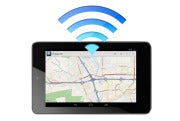
If you already have a smartphone with a data plan, you don't need to waste money on an additional plan for your tablet. Instead, use your phone's plan to get an Internet connection for both devices.
There are two ways to tether, or turn you phone into an Internet hotspot, using today's smartphones.
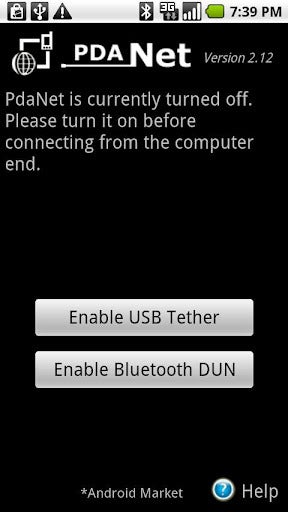
PdaNet tethering appPdaNet tethering appOne option is to use your phone's built-in tethering ability, which means you'll likely have to pay your carrier an extra fee for the service. The other is to download a third-party tethering app such as PdaNet (for nonrooted Android phones), Wireless Tether for Root Users (for rooted Android phones), or PdaNet for iPhone (for jailbroken phones).
The only problem with tethering is that carriers do their utmost to discourage it. If you use your phone's default tethering ability, you'll have to pay your carrier a fee of around $20 for the privilege. That's $20 on top of your already pricey data plan--and you don't get any extra data.
And if you use a third-party tethering app, your carrier can charge you if it finds out (unless you happen to be on Verizon). And only jailbroken iPhones can run third-party tethering apps.
But jailbreaking, rooting, or paying a monthly fee may be a small price to pay for the freedom to use your Wi-Fi only tablet (and other devices, such as your laptop) wherever you can use your phone.

2. Get a Mobile Hotspot

Instead of tethering your tablet to your phone's data plan, you may want to consider picking up a mobile hotspot from your local wireless carrier.
A dedicated mobile hotspot can yield better results than tethering your phone's data connection. For starters, it's often faster and more reliable than a tethered phone's connection. And whereas tethering can drain a phone's battery quickly, mobile hotspots commonly deliver many hours of battery life.
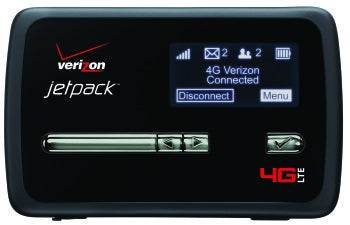
Verizon Jetpack 4G LTE Mobile Hotspot MiFi 4620L Verizon Jetpack 4G LTE Mobile Hotspot MiFi 4620L I use the Novatel Wireless MiFi 4510L for Verizon LTE, which offers long battery life, excellent data speeds, and a solid connection--unlike my Galaxy Nexus phone.
Though the MiFi 4510L lost out in PCWorld's hotspot tests to the Samsung 4G LTE Mobile Hotspot, the main advantage of the MiFi 4510L is its ability to keep its connection while moving. The Samsung 4G LTE is speedier when you're sitting still, but, in my hands-on experience, the MiFi 4510L maintained a solid connection on a 9-hour drive to Vegas (our PCWorld tests didn't evaluate this capability).
Check out our latest mobile hotspot showdown here.

3. Preload Magazines and Books

Tablets are the perfect travel device--they're lightweight, they have large screens, and you don't need to take them out of your bag during a TSA search. Tablets are also great because they let you carry around tons of reading material without weighing down your bag.
So the next time you head out of town (or go to the gym or hop on the train for your morning commute), try preloading some magazines and books on your Wi-Fi-only tablet so you can read at your leisure--without an Internet connection.
Zinio reading appZinio reading appZinio (for Android and iPad) is an excellent reading app that lets you subscribe to hundreds of magazines (in full color). Sure, you have to pay for the subscription (which isn't much cheaper than a print subscription), but you can download entire magazines before you leave your Wi-Fi zone.
The Amazon Kindle app (Android and iPad) is a great reading app--not just because you can download and read ebooks from Amazon's online store, but because you have free access to tons of ebooks from your local library. Find out whether your library participates by searching OverDrive.

4. Use Offline Mapping Apps

Mapping applications on smartphones and tablets have made getting lost practically obsolete (practically...), but such apps only apply to devices that have constant data connections, right? Wrong--thanks to offline mapping apps, you can stay on track wherever you are, data connection or not.
For a couple of years now, Google Maps has had an offline-viewing option that can even offer turn-by-turn directions without connecting to a network (providing that you've already looked up the route).

City Maps 2GoCity Maps 2GoIf you're heading to a new city and you aren't sure when you'll be able to grab a Wi-Fi connection, try a mapping app such as City Maps 2Go (Android and iPad), which costs $1 to $2. This app lets you download thousands of maps for offline viewing (the iPad version currently has a promo for unlimited downloads, while the Android version offers five free downloads).

5. Read It Later

Suppose that you like to read Web pages--not magazines and books--on your tablet. Instead of letting your lack of Internet connection frustrate you, try using a service such as Pocket, formerly known as Read It Later.
Pocket lets you save Web pages from your computer, by email, or directly from select apps to a special Read It Later list. Once you've saved something to your list, you can open it from any of your devices, assuming that you've connected to the Internet long enough for your list to update.
Download the Pocket app for Android, iPad, or Kindle Fire, and read all of those webpages later on--without an Internet connection. 

Tuesday, 24 July 2012

Google Nexus 7 Tablet Review: Solid, but Not Revolutionary


Google Nexus 7
The Google Nexus 7 tablet resets expectations of what an inexpensive tablet can and should be. Starting at $199, the Nexus 7 clearly guns for Amazon's same-priced but lesser-quality Kindle Fire, which runs Amazon's limited flavor of Android.
Make no mistake: Of today's 7-inch Android tablets, the Nexus 7 is the one to beat, and it is handily one of the best-executed Android tablets of any size you can buy. In some ways, that's not saying much; for as much as it does well--it has a tremendous 10-plus-hour battery life, and it produces reasonably clear text and accurate colors--the Nexus 7 stumbles by leaving out an expansion slot.
You need to step up to the 16GB $249 version for the Nexus 7 to make a sensible purchase, and even then you'll be settling for something short of the ideal tablet.
The lack of a memory card slot hobbles Google's shiny new tablet before you can even get moved in and set up.
Android has always held a big advantage over Apple's iOS in its ability to expand on-board storage via a memory card; in fact, this is something that every tablet competing with the Nexus 7 except theAmazon Kindle Fire (and Apple's iPad, natch) has. The Kindle Fire has taken lots of flack for providing a baseline model with only 8GB of storage and no room to grow.
It's not clear why Google opted to leave out the card slot. Cutting it may be as much about Google's live-in-the-cloud philosophy and services as it is a cost-cutting measure adopted by Google and Nexus 7 manufacturer Asus in order to meet an aggressive price.
If Google's emphasis on cloud services is indeed behind this choice--and likely that's the case, given that Google bills the Nexus 7 as being "Made for Google Play"--that frankly makes Google's despotism no better than Apple's decision to keep users in its walled garden or Amazon's decision to force us to use its cloud services with the Kindle Fire.
Amazon, too, tried to spin its minimal on-board storage by saying that you could store media in, and stream content from, its cloud services. That approach is not rooted in consumers' real-world usage patterns, and it doesn't account for the vagaries of Wi-Fi availability and bandwidth. Consumers crave offline storage; we're still away from wireless connections often enough for local storage to matter. No one wants to have to keep managing their content on and off the tablet just to work around a space limitation.
Given that we're seven months on from when Amazon's first-generation Kindle Fire was introduced, I'm surprised and disappointed that Google didn't push the default memory on the Nexus 7 to 16GB in the $199 model. Now that would have gotten our collective attention--and rightly so. With the Nexus 7 you're going to be downloading movies and television shows in high-definition, using apps optimized for high-definition displays, and loading up your high-resolution images for use in the gallery; and with all that activity, 8GB just won't go very far. That amount of storage, with only 5.62GB of user-accessible space when you start the tablet for the first time--is too parsimonious to make the Nexus 7 a tablet I can recommend whole-heartedly. That's unfortunate, because the Nexus 7 actually gets a lot right--far more than most competing Android machines.

Nexus—Light and Comfy

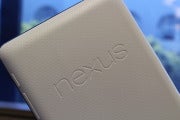
When you pick up the Nexus 7, you'll notice immediately that it isn't like other inexpensive tablets. Its construction has a high-quality look and feel; it doesn't generate that low-end vibe you get from handling other "value" tablets in the market. The side bezel is plastic, with a textured, rubberized finish on the back that feels comfortable in-hand, and yet won't attract dust or particles as some rubberized backs we've seen (though it does seem to scratch fairly easily).
Another thing you'll notice right away: This tablet is light enough that you can hold it in one hand for extended periods. At 0.75 pound, the tablet is still about 0.2 pound too heavy for no-thought-required one-handed operation--a major advantage of dedicated E Ink-based e-readers that now weigh under half a pound. Still, the Nexus 7 is among the lightest tablets we've seen; most notably, it's 18 percent lighter than Amazon's 0.91-pound Kindle Fire. The Samsung Galaxy Tab 2 weighs about the same, at 0.76 pounds, and the Toshiba Excite 7.7 (with its 0.7-inch larger display) weighs 0.77 pound.
The Nexus 7's footprint is about average. It's slightly thinner than the Kindle Fire (0.41 inch versus 0.45 inch), and it's the same thickness as the Excite 7.7. The Nexus 7 is slightly longer than some of its competitors, too: It stands 7.8 inches tall, versus Kindle Fire's 7.5 inches and the Samsung Galaxy Tab's 7.6 inches; the Excite is taller still, though, at 8.1 inches. The Nexus 7 is also a smidge narrower than others, besting the Fire by 0.1 inch.
I found the Nexus 7's dimensions convenient and pleasing; with its 7-inch screen, the tablet was unobtrusive to use in cafés and on public transit, and its dimensions nicely accommodated thumb-typing on the on-screen keyboard in portrait orientation. Still, despite what the numbers say, I preferred the way the Excite 7.7 felt in my hands; it seemed thinner, lighter, and more balanced than the Nexus 7, the specs notwithstanding.
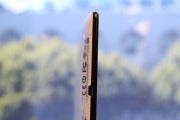
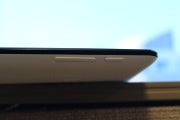
Other aspects of the Nexus 7's physical design are noteworthy, too. The power/sleep and volume buttons along the curved right-hand bezel are sturdy and easy to press. Along the bottom bezel sits the headphone jack and a MicroUSB port for charging the tablet and for transferring data from your PC.
Above the ports is an approximately 2-inch-wide stereo speakers port (the two speakers outlet from a single port, as on the Asus Transformer Infinity TF700). The speaker location along the bottom doesn't seem to hamper audio playback; your hands may cover it if you hold the tablet with both hands in horizontal mode, but not if if you hold it along the bottom edge, as opposed to the center.
At the bottom left is a four-pin connector that Google says could be used for a dock, though no accessories appear to be available for the Nexus 7 at this writing. Other hardware features include a 1.2-megapixel front-facing camera and an NFC chip, which comes in handy for use with Android Beam if you happen to have another NFC-enabled Android device available.
The front face is composed of smooth, scratch-resistant Corning glass (but not Corning's Gorilla Glass). The glass is optically bonded to the 7-inch, 1280-by-800-pixel display, which makes a tremendous difference in the device's image quality. With no air gap in play, text looks crisper, contrast is better, and glare is mitigated (although not eliminated). At 216 pixels per inch, the Nexus 7 is clearly far ahead of other 7-inch tablets' pixel density of 170 ppi, and the difference is palpable.
This is the third 7-inch tablet with a 1280-by-800 display. Oddly, Google appears to have tweaked the fonts in Android 4.1, and text rendering in the Chrome browser differs substantially from text rendering in the original Android Honeycomb (3.0) and Ice Cream Sandwich (4.0) browsers. The Nexus 7's tweaks yield text that is far superior to what we see on say, the Galaxy Tab 2 or the Amazon Kindle Fire; but it remains very jaggy and lacks the smoothness of the Retina displays on Apple's most recent iPhone and iPad (which has a pixel density of 264 ppi), or even the smoother text rendering seen on Android 3.2 and Android 4.0 tablets. I'd have to say that Nexus 7's display bests that of Toshiba's Thrive 7 and T-Mobile's Springboard; both shipped last year with the same-resolution display, but each had a noticeable air gap and produced poorer colors.
I was impressed at how well the Nexus 7 handled test images in our image quality tests. Color reproduction was pleasing and fairly accurate, though Android still appeared to struggle with accurately reproducing skin tones.

High Performance: Inside the Nexus 7

The Nexus 7 is the first tablet to use Nvidia's Kai reference platform. Kai was designed specifically to reduce the cost of producing a tablet without sacrificing performance. It would appear that the Nexus 7 achieves this goal, based on its performance on our tablet benchmarks.
Inside, the Nexus 7 carries a 1.2GHz quad-core Nvidia Tegra 3 T30L processor; it runs at 1.3GHz in single-core operation. Those are the same frequencies as found on the new Acer Iconia Tab A700, but Nvidia can't comment on whether everything about the Tegra 3 inside the Nexus 7 is the same as on the A700. The tablet also has 1GB of DDR3 memory.
The Nexus 7 lasted an astounding 10 hours, 10 minutes in our video playback test, with brightness set to 200 cd/m(candelas per square meter). That's just 36 minutes shy of the Apple iPad, and it tops all competing 7-inch tablets by a mile. Amazon's Kindle Fire lasted 6 hours, 54 minutes; Samsung's Galaxy Tab 2 7.0 lasted 6 hours, 20 minutes; the Toshiba Excite 7.7 lasted 7 hours, 32 minutes; and the Sprint ZTE Optik lasted 5 hours, 51 minutes. That figure is also competitive with 10.1-inch Android tablets; Acer's Iconia Tab A700 lasted 8 hours, 11 minutes; Toshiba's Excite 10 lasted 7 hours, 5 minutes; the Samsung Galaxy Tab 2 10.1 lasted 11 hours, 41 minutes; and the Asus Transformer Pad Infinity lasted 7 hours, 58 minutes.
Unfortunately, the Nexus 7 also took the longest of any 7-inch class tablets to recharge, requiring 3 hours, 49 minutes to fully juice up, compared with the Galaxy Tab 2's 3 hours, 32 minutes and the Toshiba Excite 7.7's 3 hours, 21 minutes. This result might reflect the fact that the Nexus 7 charges via its MicroUSB port.
The Nexus 7 excelled on our benchmarks. It was the best performer of any of our 7-inch class tablets; and was competitive on some tests with the top 10.1-inch Android tablets. Its performance on Geekbench, for example, was nearly four times better than that of the Galaxy Tab 2 7.0; and it bested Toshiba's Excite 7.7, too. Interestingly, though it was close to the Acer Iconia Tab A700 on this test, it outperformed the Acer on some of our metrics and fared worse on others. Both tablets run an Nvidia Tegra 3 at the same clock speed, so these variances could be due to tweaks in the Tegra 3 chip or other unknown variables.
On our two GLBenchmark 2.1.4 tests, the Nexus 7 was an average performer. It logged the sixth-highest score we've seen on Egypt Offscreen, at 63 frames per second; by comparison, AsusTransformer Pad Infinity logged 74 fps, and iPad logged 139 fps. On the Pro Offscreen test, the Nexus 7 was fifth highest, at 82 fps, as compared with 96 fps for the Infinity and 139 fps for the iPad. For perspective, the Kindle Fire lagged far behind, scoring just 23 fps and 31 fps, respectively, on Egypt Offscreen and Pro Offscreen.
The Nexus 7's performance on our Web browser-based tests was mixed. It was the fastest performer of our field on Sunspider, requiring just 1.71 seconds to complete that benchmark; but it was among the slower performers on a custom, media-heavy Web page load test.
In use, I found the Nexus 7 fast and responsive. I especially liked the dramatically improved keyboard, which seemed better able to keep up with my flying fingers.

Software: Jelly Bean Tweaks Android Again

The Nexus 7 is the first tablet with Android 4.1 Jelly Bean, and the differences between Ice Cream Sandwich and Jelly Bean on tablets are a lot greater than Google first let on. For my comparisons with ICS tablets below, I used Samsung's Galaxy Tab 2 (which also has a custom overlay), Asus's Transformer Pad Infinity TF700, Acer's Iconia Tab A700, and Toshiba's Excite tablets (7.7, 10, and 13).
The changes are evident as soon as you start up the tablet and see the Welcome screen. The new Android 4.1 Welcome screen and its ensuing setup walkthrough and first-time-use pop-up explanations are incredibly friendly for newcomers, with big, bold lettering and a clean design. That clean design continues with the Android 4.1 home screen, which reflects numerous changes to the Android experience on a 7-inch tablet.
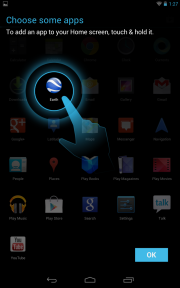
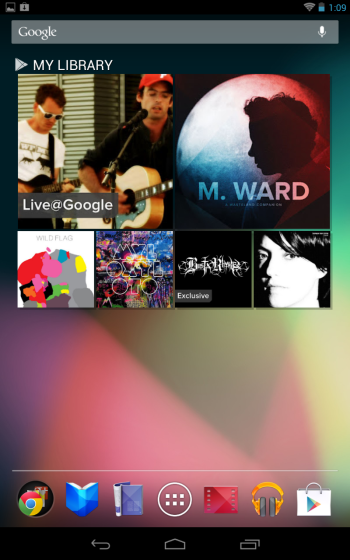
For one thing, Google has refreshed the home screen with changes both minor and dramatic. A nifty Google launcher runs along the bottom, with five basic Google app icons--for Play Books, Play Magazines, Play Movies & TV, Play Music, and the Play Store--and a folder packed with 11 other native Google apps, including the Chrome Web browser which now replaces the previous "Browser" app. At the center of this launcher bar is the new menu icon, which is the only one of the seven icons that's fixed; you can swap out the others for other apps of your choice, or for folders of apps you choose.

Google has shaken up the design of its core navigation and status buttons, in order to reorient everything around the portrait position. Google expects 7-inch tablets to be used more in portrait mode than anything else. This explains the move of the three nav buttons (back, home, and recent apps) from their former location flush left to their new locale, spread out along the bottom center of the display. The clock and notifications, meanwhile, move from the lower right of the display to the top of the screen. To gain access to the notifications or settings, you must slide down the "shader" from the top of the display. After the clean simplicity of the notifications pop-up on the lower right of the screen, this new design is hard to get used to. Pulling down the shader reveals a larger clock, a rotation lock soft-touch button, and a settings shortcut. Though cleaner than the pull-down Google provided on the early Froyo-based Galaxy Tab, the effect is the same: It makes the Nexus 7 feel more like a phone than a tablet.
Other interface tweaks contribute to making the Nexus 7 feel more like a giant phone than a tablet. The home and menu screens are fixed in portrait orientation, which can be jarring if you're moving from watching a video to doing something else on the tablet. And in the settings menu, you no longer have panes in portrait mode; this change makes it faster to navigate among settings options. Also gone is the battery life percentage; you get just an icon now.
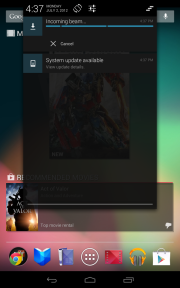
Many of these tweaks annoyed me greatly, since I was accustomed to the features offered on Android 3.x/Android 4.0 tablets; they made it more difficult to reach some features, and I prefer the simplicity of a tap versus a pull-down shader for accessing more menu options. Google says that the former layout should be what we see on future 10.1-inch Android 4.1 tablets, but I missed that design on the 7-inch size. I did like the new set of Play widgets for surfacing content from My Library, My Books, My Magazines, My Movies, and My Music, but I was less satisfied with the recommendations widgets. The beauty of Android is that you have the choice to customize the home screen, and you get customization in spades. Widgets are more resizable now; and in addition to the Google Play widgets, you get a handy new widget for quick access to wireless, rotation, and brightness controls--plus another one for using Android 4.1's new music identifier. The music ID worked successfully with most of the music I threw at it, struggling only with beat-heavy areas of dance tracks and some obscure world music choices from Croatia, Japan, and Poland.
At the top of the home screen sits the Google Now bar, with a handy introduction to the Google Now search services, and a microphone icon for initiating voice searches.
One more change for the better: The Google Nexus 7's native image gallery has improved image rendering as compared with Android 4.0 and 3.2. I noticed that images regained full sharpness more quickly than before, a critical feature when you actively use the gallery to show off your pictures.
Unfortunately, Nexus 7 also shows one of Android uglier sides--the pain of OS and device fragmentation. I encountered some tablet apps that wouldn't work on the Nexus, raising the old issues involving Android's app availability and compatibility. Android 4.1 goes a long way toward improving Android's usability--in spite of the aforementioned portrait mode and nav button mess--but it doesn't solve some of the underlying problems, either.

Bottom Line

Google succeeds at shooting Amazon's Kindle Fire out of the sky; the company has delivered a superior piece of hardware at the same starting price. The Nexus 7 also beats out the same-priced Samsung Galaxy Tab 2 (an Android 4.0 tablet with lesser performance and half the storage, but with a MicroSD card slot), and it beats out Barnes & Noble's limited Nook Tablet (which adds a MicroSD slot, but is restricted by B&N's custom Android version and the apps approved for it). I like the feel and design of the Toshiba Excite 7.7 better, but that model costs twice as much as the 16GB Nexus 7. Google hasn't positioned the Nexus as an iPad killer, but it's worth noting that the Nexus's price is a 38 percent savings over the cost of getting a larger-screen, same-size iPad 2, and a 50 percent savings over a third-generation iPad.
The Google Nexus 7 tablet is simply the best 7-inch tablet you can buy today. It performs well, but its mixed display performance and lack of a MicroSD card slot prevent it from eliciting unequivocal enthusiasm. Ultimately, I would describe the 8GB Nexus 7 as the best tablet you shouldn't buy today--even though its relatively low price will soften the blow when you outgrow the Nexus 7's limitations and want to step up to another model in six months' time. At 16GB, the Nexus 7 becomes an affordably priced starter tablet that provides terrific battery life, solid performance, and the latest full-court version of Android. But beware of the storage limitations; they might be a deal breaker for anyone with a large media collection or a desire to download movies and TV shows from Google 

Samsung: Apple Refused to Negotiate to License 3G Patents


Samsung Electronics accused Apple of refusing to enter into negotiations to license essential 3G patents included in the iPhone and iPad during the first day of their patent trial on Monday in Federal Court in Sydney.
In Australia, Apple filed suit against Samsung in July 2011, alleging that the company's Galaxy tablet infringed on patents related to touchscreen technology. Samsung subsequently filed a cross-claim against Apple, claiming violation of three 3G data transmission patents in Apple's iPhone 4 and 4S models and second iPad model.
Monday's hearing focused on two of the three patents -- Australian patents No. 2005202512 and No. 2006241621 -- that Samsung alleges Apple has violated. The two patents deal with power control and the format of packet headers used for 3G data transmissions. The court will address patent No. 2005239657, which deals with rate matching patterns used in data transmission, in August.
Apple's relationship with Samsung broke down after Apple filed a lawsuit in California in April 2011 against Samsung related to the Galaxy tablet, Samsung's attorney Neil Young said. Samsung had offered to negotiate with Apple to license the patents on fair, reasonable and non-discriminatory (FRAND) terms.
"Our position is Apple has refused to engage in negotiations," Young said.
Samsung asked Justice Annabelle Claire Bennett to separate the company's cross-claim hearings from Apple's tablet allegation. The trial is scheduled to run through the end of the week, with other sessions scheduled through October.
Apple and Samsung are engaged in long-running legal battles in several countries. In the U.S. last Thursday, Samsung lost an appeal in the U.S. Court of Appeals for the Federal Circuit to stay a preliminary injunction banning the sale of the company's Galaxy 10.1 tablet. Earlier in the month, Samsung was also denied by a U.S. District Court a stay on a preliminary injunction against sales in the U.S. of Samsung's Galaxy Nexus smartphone running Android.
In the U.K., a judge ruled on July 9 that Samsung's tablets do not infringe on a registered Apple design because "they are not as cool" and that the Galaxy Tablets do not have the extreme simplicity of Apple's iPad.
In that case, Samsung sought a declaration that three of its tablets -- the Galaxy Tab 10.1, Galaxy Tab 8.9 and Galaxy Tab 7.7 -- do not infringe on Apple's registered iPad design.
In the Netherlands on June 20, Apple was found to have infringed on Samsung's 3G patents by using Intel and Infineon baseband chips in the iPhone 3G, 3GS and 4 and the iPad 1 and 2. The court ruled Apple caused harm to Samsung since August 2010 by using the chips without paying a license fee.